Minecraft: Java Edition
Sandbox · Mojang
Using the Live World Map
How to explore your Minecraft Overworld, Nether, and End, locate spawn and players, and jump to coordinates with the built-in World Map in the Rogue Wave Hosting panel.
On this page 4
The built-in World Map renders a live, top-down 2D map read directly from your Minecraft server’s saved world files—no BlueMap, Dynmap, extra port allocations, or heavy web-rendering plugins required.
Exploring Your World & Dimensions
Open your server in the Game Panel and click Minecraft Tools → World Map in the left sidebar.
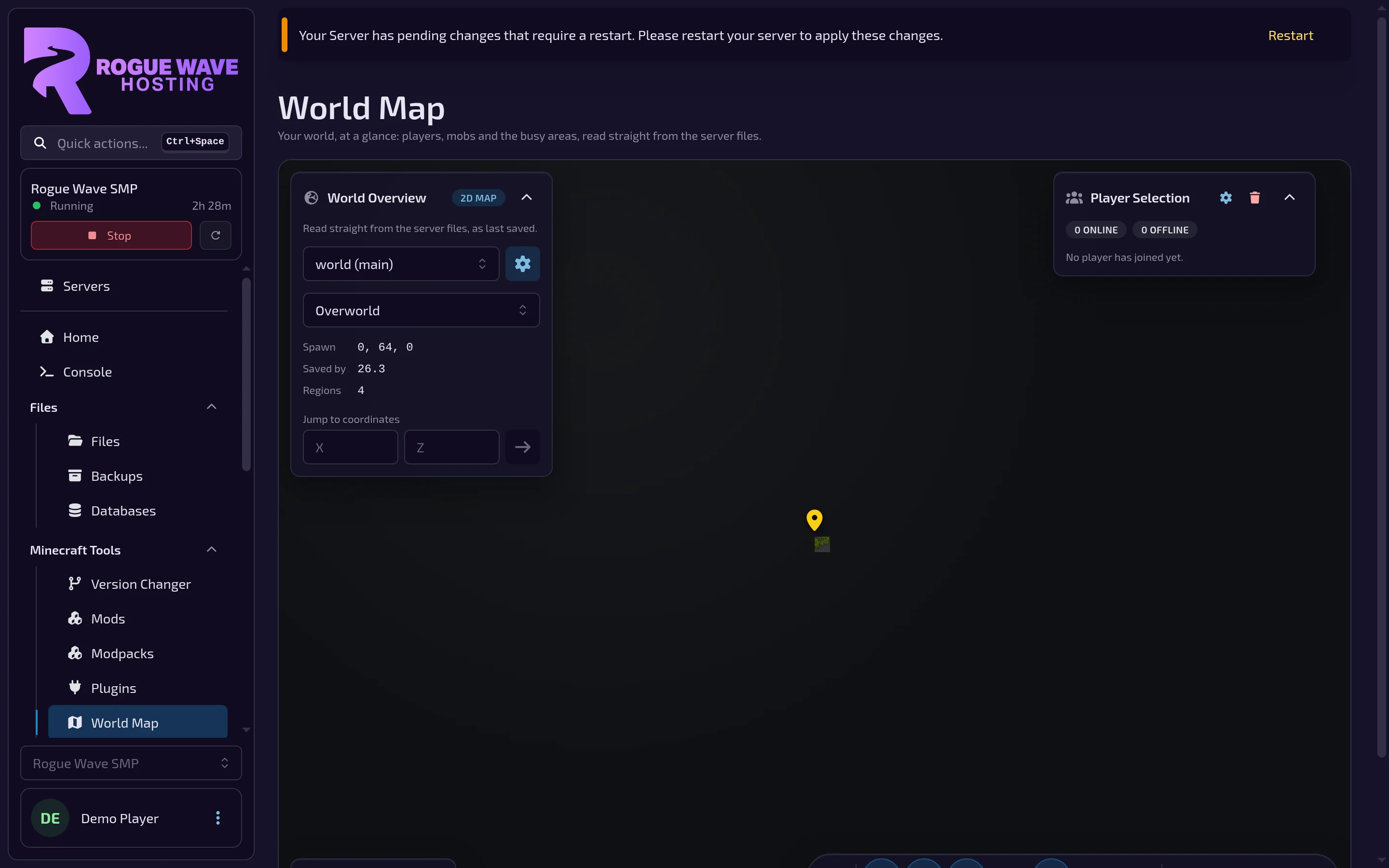
World Overview Panel (Top-Left)
- World selector — Pick which world folder to inspect (for example,
world (main), or additional worlds on Paper/Multiverse servers). - Dimension selector — Switch cleanly between Overworld, Nether, and End.
- World metadata — View your world’s exact Spawn coordinates (
X, Y, Z), the Minecraft version it was Saved by, and the total Regions count currently generated on disk. - Map settings (gear icon) — Toggle map overlays and display options.
- Jump to coordinates — Type any
XandZcoordinate and click the → button to pan straight to a base, stronghold, or biome without dragging across thousands of blocks.
Player Selection Panel (Top-Right)
- View counts for ONLINE and OFFLINE players who have joined your world.
- Click a player to locate their last saved position on the map, inspect where activity is concentrated, or manage player overlays using the toolbar icons.
Practical Ways to Use World Map
- Scout spawn and base layouts — Check terrain around
(0, 0)or your community hub before planning roads, towns, or protected regions. - Find runaway exploration & disk bloat — Keep an eye on the Regions counter in World Overview. If players flew tens of thousands of blocks out with Elytra and inflated your world size, you can inspect those outlying regions before pruning unused chunks.
- Verify world saves after an import or restore — After migrating a server with Importing an Existing Server or rolling back a snapshot via Using Backups, open World Map to confirm your expected terrain and spawn loaded properly.